The Ultimate Guide to Villa Video Door Phone Installation: Wiring, Setup, and Best Practices
Share
Installing a video door phone in a villa is not the same as wiring a single apartment. Villas have multiple entrances, long distances between the gate and the house, multiple indoor monitors, and often existing cabling that must be reused or replaced. Getting the installation right the first time saves money, prevents callbacks, and ensures reliable performance for years.
FARHD has been manufacturing video intercom systems since 1998, with over 28 years of experience serving villa projects worldwide. This guide draws on that experience to walk you through every stage of a professional villa installation—from planning and wiring to configuration and testing. Whether you are a system integrator, installer, or property developer, these best practices will help you deliver a reliable, resident-friendly system.
1. Planning: The Foundation of a Successful Installation
Before you pick up a drill or pull a single cable, plan the entire system. A few hours of planning prevents days of troubleshooting.
1.1. Assess the Site
Walk the property and map every entrance that needs intercom coverage:
- Main gate – The primary vehicle and pedestrian entrance.
- Front door – Often a secondary verification point.
- Side or garden gate – For service access or deliveries.
- Garage or parking entrance – For vehicle access.
For each entrance, note:
- Distance from the proposed indoor monitor location.
- Availability of power.
- Exposure to weather (direct sun, rain, snow).
- Existing cabling, if any.
1.2. Choose the Right System Technology
Villa projects typically use one of three technologies. Your choice depends on existing wiring, distance, and feature requirements.
| Technology | Best For | Wiring | Key Considerations |
|---|---|---|---|
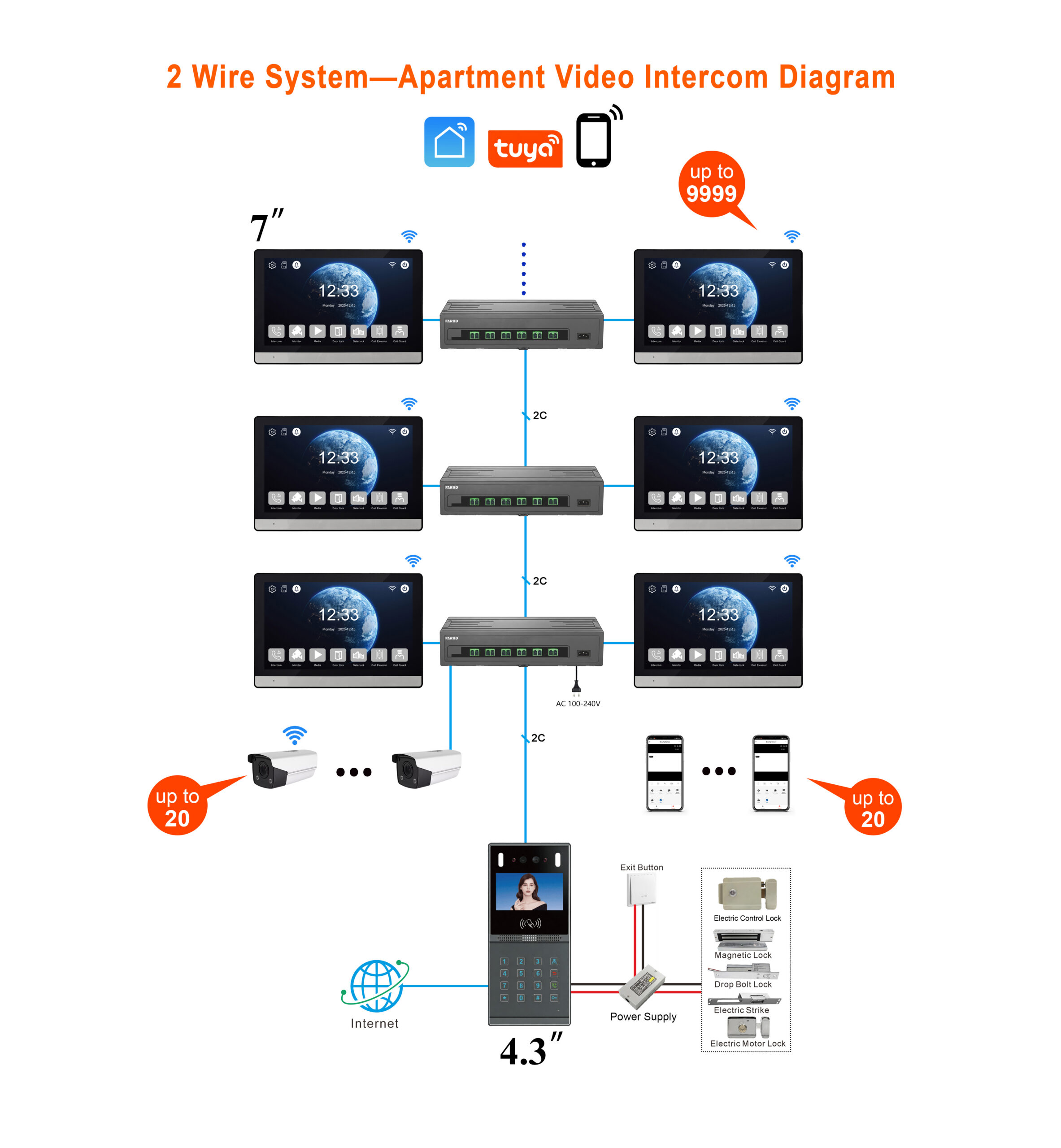
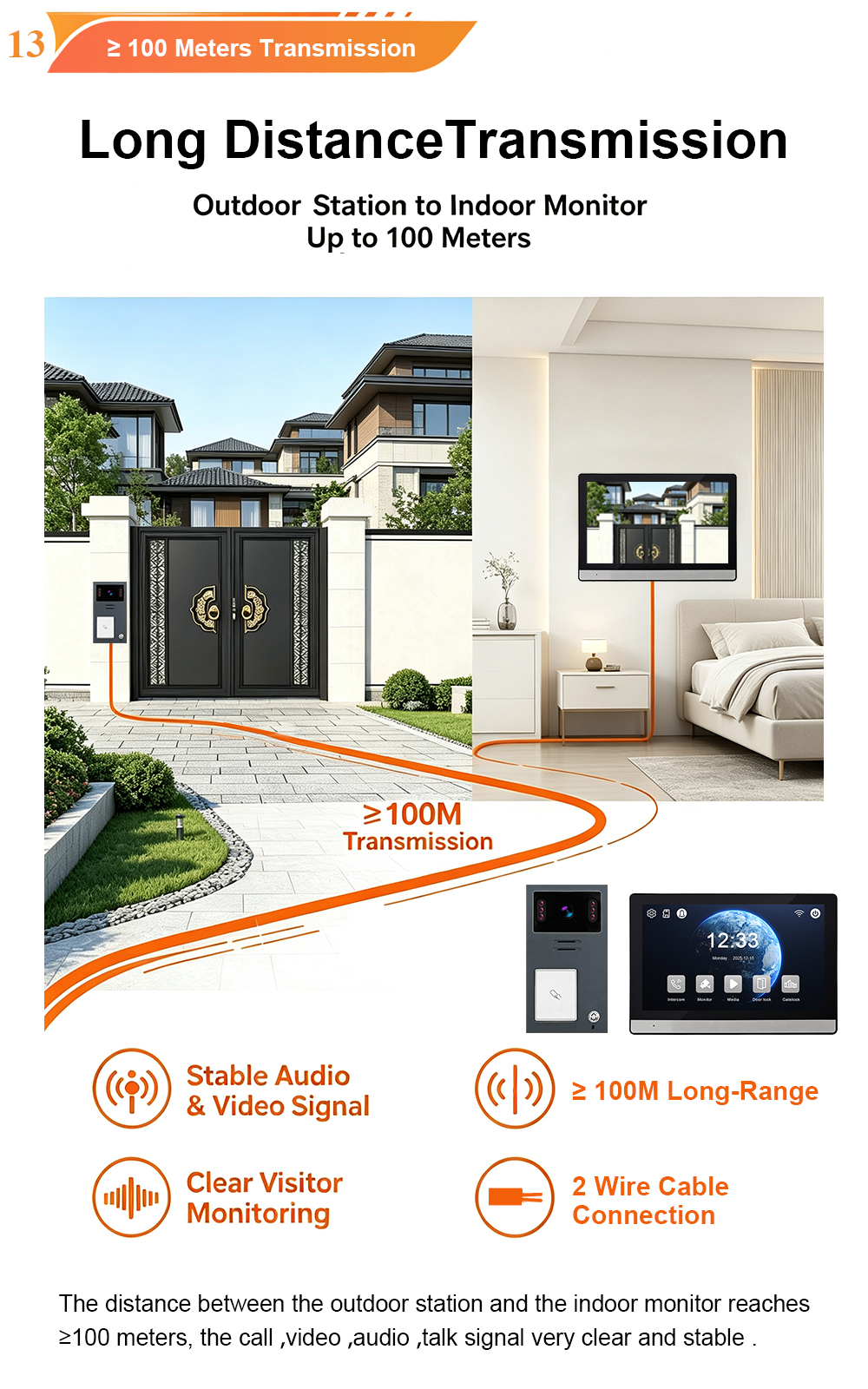
| 2-Wire | Retrofits, existing cabling | 2-core copper cable | Reuses old wires; non-polarity; up to 100m |
| 4-Wire | Traditional installations | 4-core copper cable | Stable analog; separate power/signal |
| IP | New builds, smart integration | CAT5/6 + PoE | Highest bandwidth; remote access; ONVIF |
FARHD offers all three. For villa retrofits, the 2-wire system is often the best choice because it can reuse existing doorbell or telephone wiring—eliminating the need for new cables.
1.3. Determine Cable Lengths and Gauge
Cable gauge depends on distance. Use this as a guide for 2-wire systems:
| Distance | Recommended Cable Gauge |
|---|---|
| Up to 50m | 0.75 mm² |
| 50–100m | 1.00 mm² |
For IP systems, standard CAT5e or CAT6 cable supports up to 100 metres. If the gate is farther, use a PoE extender or fiber optic cable.
1.4. Plan Indoor Monitor Locations
Villas often need multiple indoor monitors—one in the living room, one in the master bedroom, and sometimes one in the kitchen or home office. Plan each location based on:
- Convenience – Where do residents spend the most time?
- Accessibility – Can elderly residents reach it easily?
- Power availability – Is there an outlet nearby?
Mount indoor monitors at 1.2 to 1.4 metres above the floor, away from kitchens, bathrooms, and Wi-Fi routers.
2. Wiring: The Backbone of Your System
Wiring is where most installations succeed or fail. Take your time and follow the manufacturer’s diagrams.
2.1. Outdoor Station Wiring
The outdoor station is the most exposed component. Mount it at 1.5 to 1.8 metres above ground, avoiding direct sunlight and strong magnetic sources.
For 2-wire systems:
- Run the 2-core cable from the outdoor station to the indoor monitor or 2-wire switch.
- The connection is non-polarity—connect either wire to either terminal.
- If an electric lock is required, connect the lock wires to the relay output (typically NO and COM).
- A separate power supply is required for the lock—the intercom relay is a dry contact only.
For 4-wire systems:
- Connect power (12V DC positive and negative), video, and audio signals to their respective terminals.
- Use shielded cable for video to prevent interference.
- Label both ends of every cable.
For IP systems:
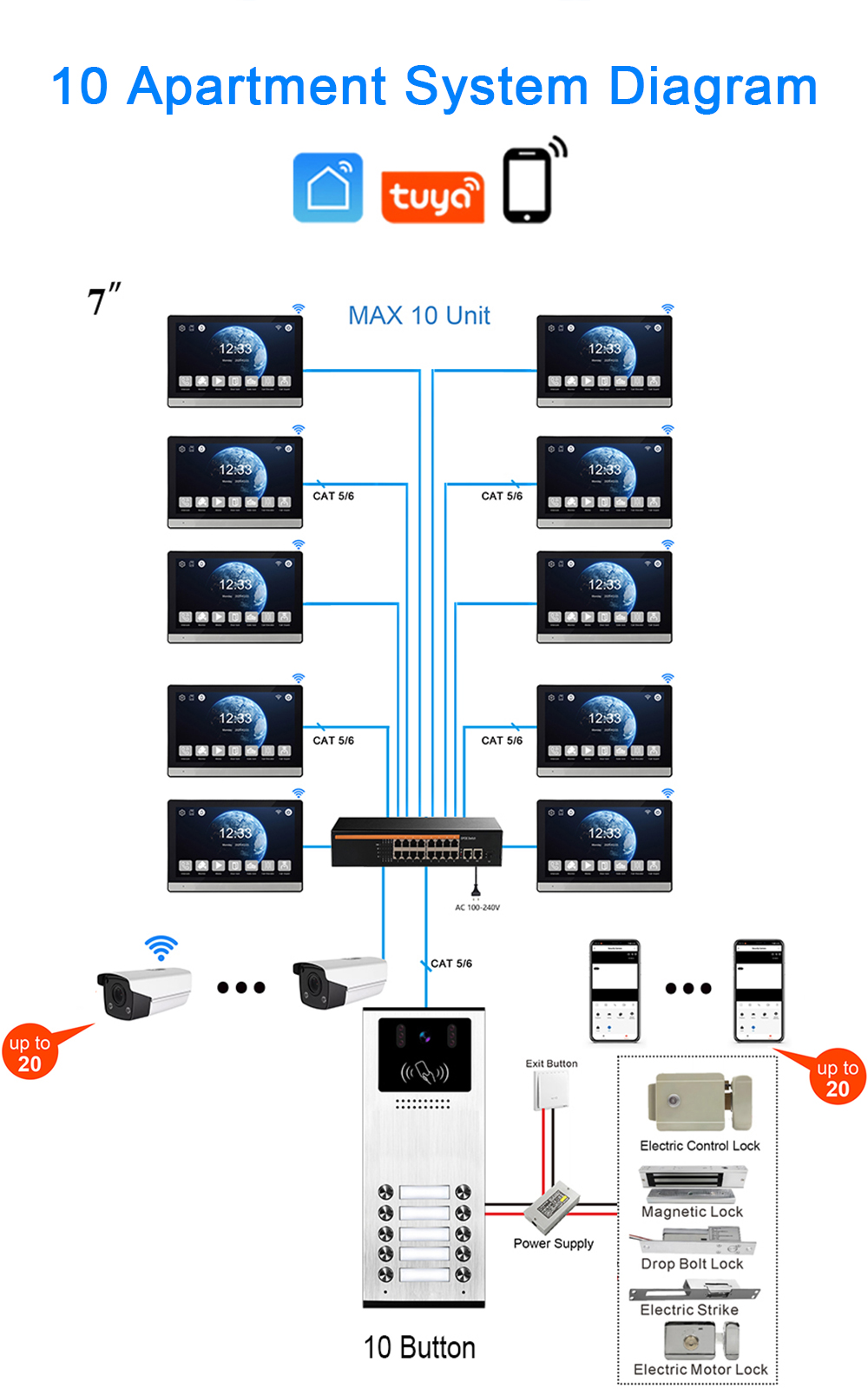
- Connect the outdoor station to a PoE switch using CAT5e/CAT6.
- The same cable carries power and data.
- Use waterproof connectors at the outdoor station.
2.2. Indoor Monitor Wiring
For 2-wire and 4-wire systems:
- Connect the cable from the outdoor station to the indoor monitor’s input terminals.
- The indoor monitor typically powers the outdoor station over the same cable.
- For multiple monitors, use a 2-wire switch or series connection, depending on the system.
For IP systems:
- Connect the indoor monitor to the same network as the outdoor station.
- Use PoE where available—one cable for power and data.
2.3. Cable Management Best Practices
- Use conduits – Protect cables in outdoor runs and where they pass through walls.
- Seal penetrations – Use silicone or waterproof grommets to prevent water ingress.
- Create drip loops – Route cables so water drips away from the device.
- Label everything – Future maintenance will be far easier.
- Avoid parallel runs with power lines – Keep intercom cables at least 30cm away from AC power to prevent interference.
3. Mounting the Hardware
3.1. Outdoor Station Mounting
- Remove the rain cover from the outdoor unit.
- Mark drilling holes using the mounting bracket as a template.
- Drill holes and insert wall anchors.
- Feed the cables through the wall or a conduit.
- Connect the wires to the outdoor station terminals.
- Secure the mounting bracket to the wall.
- Attach the outdoor station to the bracket and replace the rain cover.
3.2. Indoor Monitor Mounting
- Fix the hanging board to the wall using screws.
- Connect the wiring to the monitor’s terminals.
- Hang the monitor on the board, carefully managing the cables behind it.
- Power on and test basic functions before finalising the installation.
4. Configuration and Setup
4.1. Power-On and Self-Test
Before configuration, verify power:
- For 2-wire/4-wire systems, check that the indoor monitor powers on and the outdoor station’s backlight activates.
- For IP systems, confirm the outdoor station and indoor monitor are connected to the network and receiving PoE power.
4.2. Room Number and Device ID Configuration
For villa systems with multiple monitors, each monitor must have a unique ID. On FARHD systems, configure this via the indoor monitor menu or management software.
- Outdoor station ID: Typically 0 for the main station, 1 for a second station.
- Indoor monitor ID: Assigned per monitor (e.g., Living Room = 1, Bedroom = 2).
4.3. App Pairing (Tuya / Smart Life)
For systems with mobile app support:
- Download Tuya Smart or Smart Life from the App Store or Google Play.
- Create an account.
- Connect the indoor monitor to a 2.4GHz Wi-Fi network.
- Open the app, tap “Add Device” , and follow the pairing instructions.
- Assign the device to a room and name it (e.g., “Front Gate”).
- Test remote answering, live view, and unlock from the app.
4.4. Unlock Configuration
Configure the unlock relay duration (typically 3–10 seconds) in the indoor monitor settings. Test the lock release before final mounting.
5. Testing and Commissioning
A thorough test prevents callbacks. Test every function at every entrance and every indoor monitor.
| Test | What to Verify |
|---|---|
| Call initiation | Visitor presses button; correct monitor rings within 1.5 seconds. |
| Two-way audio | Clear conversation, no echo, no dropouts. |
| Video quality | Clear image, correct viewing angle, night vision activates in low light. |
| Unlock function | Door releases reliably; relay click audible. |
| App functions | Remote answer, live view, and unlock work over Wi-Fi. |
| Multi-monitor | Each monitor rings and can answer independently. |
| Power stability | System remains online; no reboots. |
If any test fails, check wiring connections, cable continuity, and power supply voltage before replacing hardware.
6. Best Practices for Villa Installations
6.1. Environmental Protection
- Use IP65-rated outdoor stations – FARHD outdoor stations are IP65 rated and operate from -40°C to +70°C.
- Mount away from direct sun – Reduces heat stress and screen glare.
- Install surge protection – Especially in areas with frequent lightning.
6.2. Cable and Connection Quality
- Use quality cable – ≥0.5mm² for 2-wire; shielded cable for long video runs.
- Seal all outdoor connections – Use gel-filled caps or silicone.
- Test continuity before mounting – Catch cable faults early.
6.3. Resident-Focused Design
- Mount monitors at accessible heights – 1.2–1.4m for elderly or disabled residents.
- Choose appropriate screen sizes – 7-inch for standard rooms, 10-inch for large living areas.
- Configure multi-language UI – FARHD supports up to 13 languages.
6.4. Documentation
- Keep wiring diagrams – Essential for future maintenance.
- Record device IDs and room assignments – Simplifies troubleshooting.
- Note firmware versions – For update tracking.
7. Troubleshooting Common Installation Issues
| Issue | Possible Cause | Solution |
|---|---|---|
| No power | Faulty adapter or wiring | Check power supply voltage; verify connections. |
| No video | Loose video cable (4-wire) | Re-seat BNC or terminal connections. |
| No audio | Volume muted or wiring fault | Check volume settings; verify audio terminals. |
| Lock not releasing | Insufficient lock power | Verify dedicated 12V power supply for lock. |
| App not connecting | Wi-Fi on 5GHz | Switch to 2.4GHz network. |
| Monitor not ringing | Wrong room number/ID | Reconfigure monitor ID. |
8. Why FARHD for Villa Video Intercom Projects?
FARHD has been manufacturing video intercom systems since 1998, with over 28 years of industry experience. Our villa solutions are trusted in over 100 countries.
Key advantages for villa projects:
- 2-wire, 4-wire, and IP options – Match any existing infrastructure.
- Up to 2 outdoor stations + 4 indoor monitors – Ideal for multiple entrances and rooms.
- Tuya Smart Life app – Remote answer, live view, and unlock.
- IP65 weatherproof – -40°C to +70°C for any climate.
- OEM/ODM/SKD – Custom branding, packaging, and software.
- No MOQ – Start with a sample; scale as you grow.

About the Author: S & Y Internet Technology Inc.
S & Y Internet Technology Inc. is a professional installation and repair service provider based in Flushing, New York. Our expert team provides door-to-door installation and maintenance within a 100 km radius, ensuring quick response and high-quality results for every project — whether residential, commercial, or specialized.

Install & Repair Services
You May Also Interest
-
Video Intercom Power Supply Options Explained: PoE, 2-Wire, Battery and Solar
Video intercom power supply is not a single decision. It is a cascade of decisions that begins with the building’s existing wiring and ends with how much maintenance the owner is willing to accept over the system’s life. PoE, 2-wire, battery, and solar are not four variations of the same solution. They serve different installation…
-
Video Intercoms for Historic Buildings: How to Modernize Access Without Damaging Heritage Architecture
The Governing Constraint: Fabric First, Technology Second Conservation regulations in most heritage jurisdictions prohibit visible cables, surface-mounted conduits, and devices that would alter the character of the building. Drilling into stone façades, ornate woodwork, or antique brickwork is treated as permanent damage, not a maintenance task. This means the technology stack must be chosen not…
-
From Inquiry to Installation: A Buyer’s Journey for Apartment Video Intercom Projects
Sourcing a video intercom system for an apartment building is a multi-stage process. It begins with a simple inquiry and ends with a fully operational system protecting residents and streamlining access. For distributors, system integrators, and property developers, understanding this journey is essential to avoiding delays, cost overruns, and installation headaches. This guide walks you…
-
How to Evaluate Video Intercom Suppliers: Quality, Certifications, and After-Sales Support
Choosing the right video intercom supplier is not just a purchasing decision—it is a long-term partnership that affects your product quality, your margins, and your reputation. This guide explains how to evaluate suppliers on three critical dimensions: quality, certifications, and after-sales support. In the global video intercom market, hundreds of suppliers claim to be manufacturers….