Video Door Phone System Maintenance: 10 Troubleshooting Tips for Property Managers
Share
A video door phone system is the frontline of building security and resident convenience. When it works, it’s invisible. When it fails, it generates complaints, security risks, and costly service calls. This guide provides property managers with 10 practical troubleshooting tips—covering power, video, audio, locks, cards, connectivity, and more—so you can resolve common issues quickly and keep your building running smoothly.
In any apartment building, the intercom system is used dozens of times a day. Residents rely on it to see visitors, communicate with them, and unlock the door. Property managers rely on it to manage access and reduce the burden on staff. But like any electronic system, it can develop faults over time.
The good news: many issues are simple to diagnose and fix without a technician. This guide walks you through the most common problems and their solutions.
1. No Power to the Indoor Monitor
Symptom: The indoor monitor screen is black, no lights, no response.
Possible causes and solutions:
- Check the power adapter. Ensure it is securely plugged into both the wall outlet and the monitor. Try a different outlet to rule out a dead socket.
- Check the power supply voltage. Use a multimeter to verify the adapter is outputting the correct voltage (typically 15V DC or 12V DC). If it’s dead, replace the adapter.
- Check the breaker. If the monitor is hardwired, ensure the circuit breaker has not tripped.
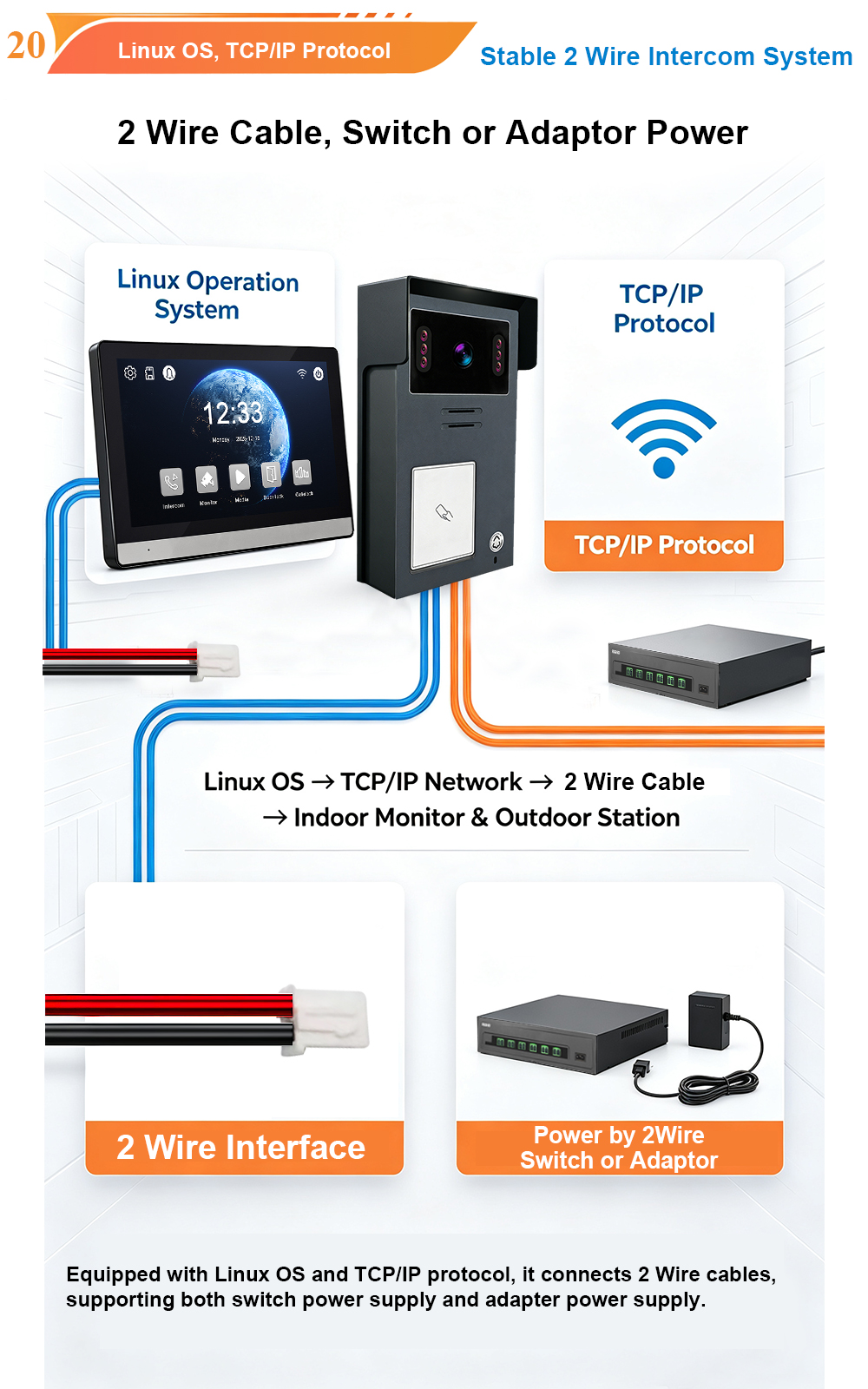
- Check for loose connections. If the monitor is powered via the 2-wire connection from the outdoor station, verify all terminals are tight.
Prevention: Label power adapters and keep a spare on hand for quick swaps.
2. No Video or Poor Video Quality
Symptom: The screen shows “No Signal,” a black screen, or a blurry/distorted image.
Possible causes and solutions:
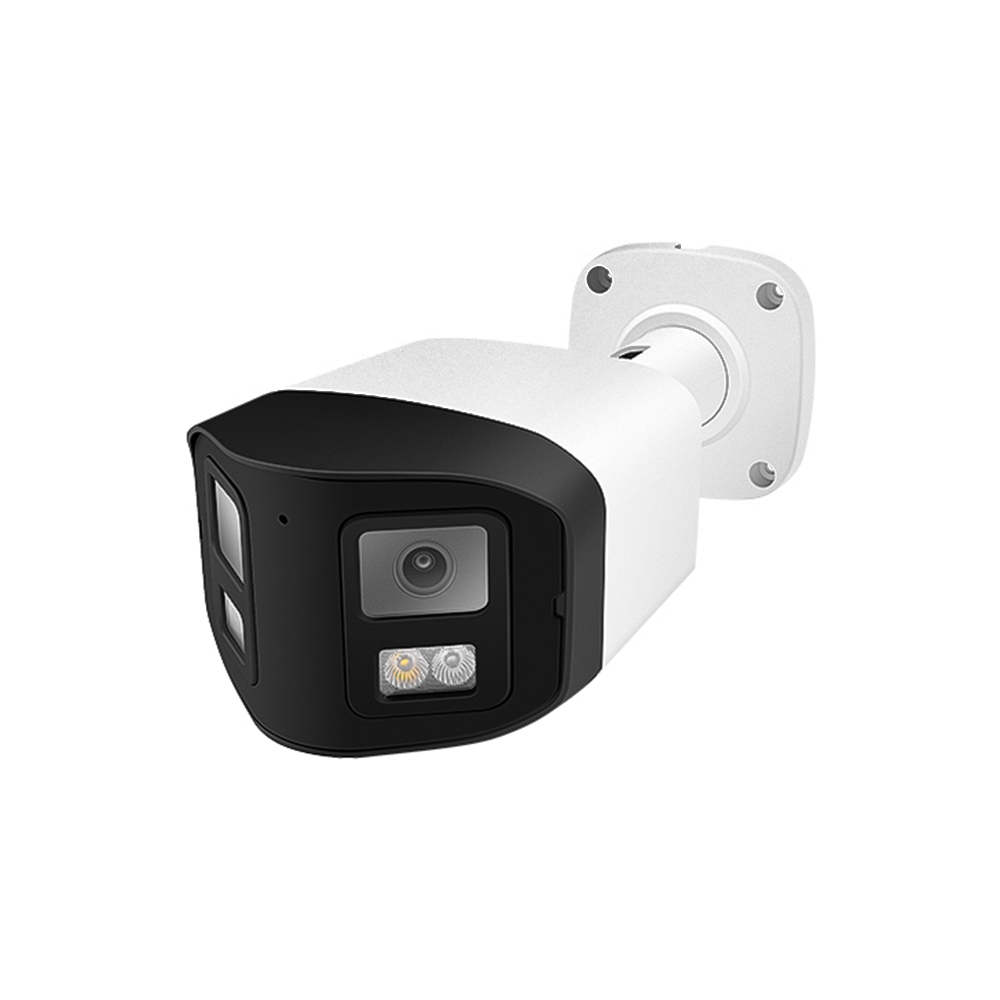
- Camera lens obstruction. Dirt, water spots, or spider webs on the outdoor camera lens can blur the image. Clean gently with a soft cloth.
- Loose cable connections. Check the video cable (for 4-wire) or the 2-wire terminals. Re-seat any loose connections.
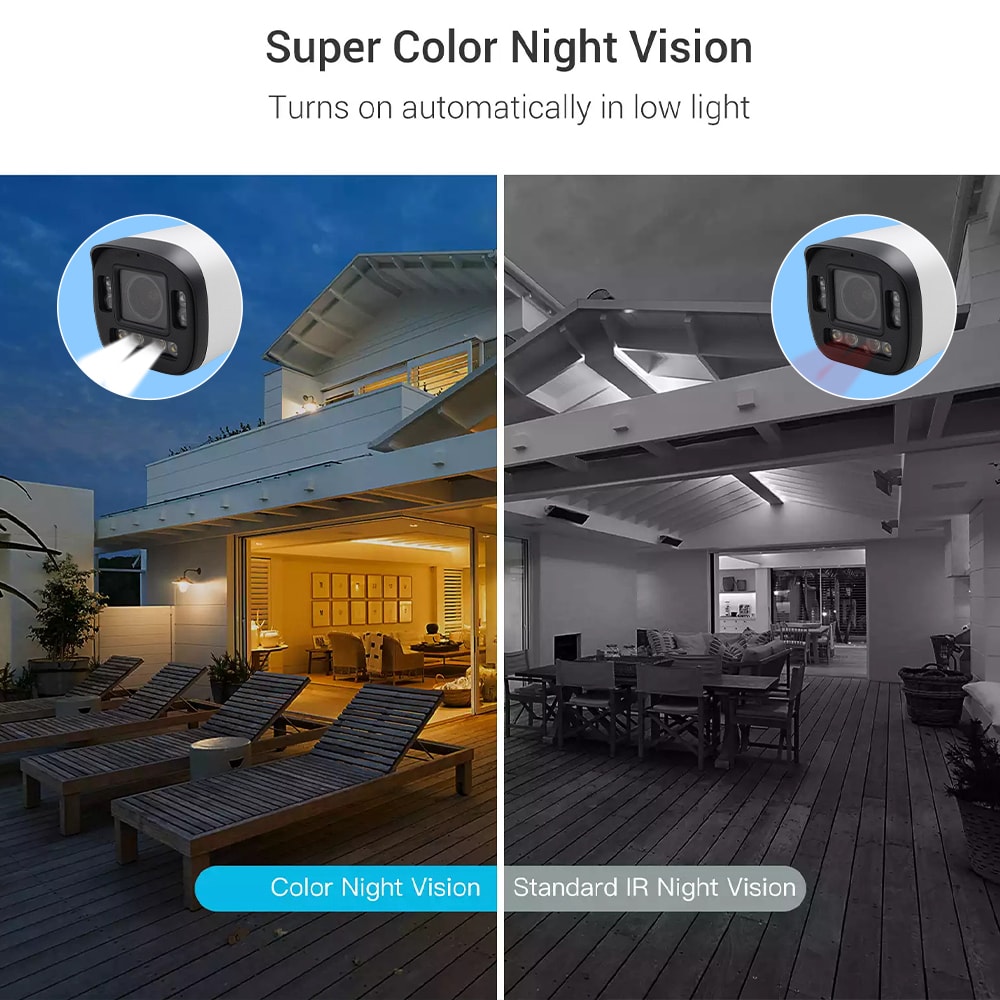
- Poor lighting conditions. If the image is washed out by direct sunlight or too dark at night, check the camera’s WDR and night vision settings. Ensure the IR LEDs are not blocked.
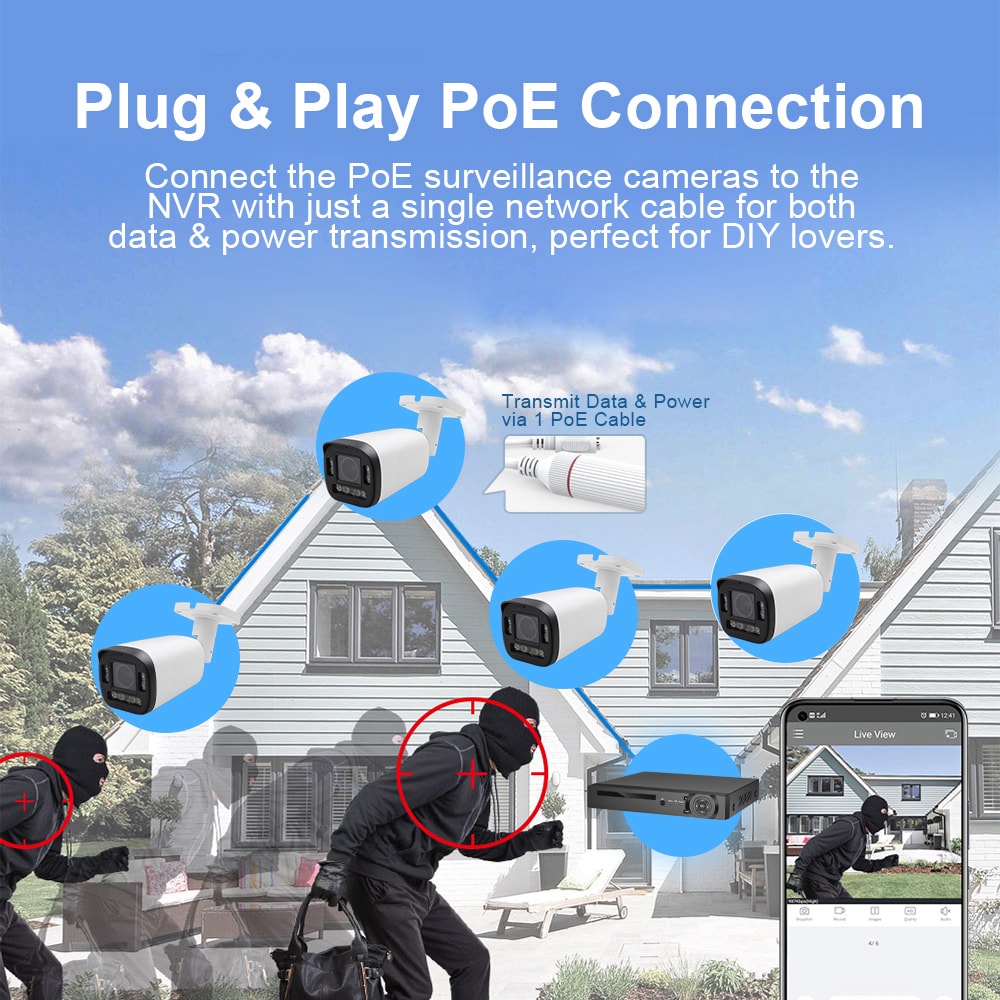
- Network issues (IP systems). Check the Ethernet cable and PoE switch. Verify the camera has an IP address and is reachable on the network.
- Interference (analog systems). Keep video cables away from high-voltage power lines. Use shielded cable if necessary.
Prevention: Schedule regular lens cleaning, especially in dusty or coastal environments.
3. No Audio or Distorted Audio
Symptom: You can see the visitor but cannot hear them, or the audio is crackly, echoing, or delayed.
Possible causes and solutions:
- Check volume settings. The indoor monitor and app may have volume controls. Ensure they are turned up and not muted.
- Check microphone and speaker holes. Dust or debris can block them. Clean gently with a soft brush.
- Loose audio connections. For 2-wire systems, verify the wiring is secure. For 4-wire, check the audio terminals.
- Echo or feedback. Reduce speaker volume; move the indoor monitor away from reflective surfaces.
- Network latency (IP systems). Check your Wi-Fi or Ethernet connection. A weak signal can cause audio dropouts.
Prevention: Test two-way audio during routine inspections.
4. Door Lock Not Releasing
Symptom: You press the unlock button, but the door does not open.
Possible causes and solutions:
- Check the lock power supply. The relay on the intercom is a dry contact—it does not power the lock. Ensure the lock has its own power supply and it is working.
- Check relay wiring. Verify the NO/COM terminals are correctly connected to the lock and power supply.
- Check lock type compatibility. Fail-secure vs. fail-safe locks require different relay configurations. Ensure your wiring matches the lock type.
- Check the lock mechanism. The lock itself may be jammed or faulty. Test it manually or with a known-good power source.
- Check the unlock duration. If the relay closes for too short a time, the lock may not release fully. Increase the unlock duration in settings.
Prevention: Label lock wiring and keep a wiring diagram on file.
5. Card Reader Not Working
Symptom: Residents cannot unlock the door with their RFID card.
Possible causes and solutions:
- Card not registered. Verify the card has been added to the system via the indoor monitor menu.
- Card reader dirty. Clean the reader area with a soft cloth.
- Card damaged. Try a different card. If it works, the original card may be faulty.
- Reader wiring loose. Check the connection between the card reader and the outdoor station.
- Card type mismatch. Ensure the cards match the reader frequency (13.56MHz IC or 125kHz ID).
Prevention: Keep a master list of issued cards and test a sample periodically.
6. Mobile App Connectivity Issues
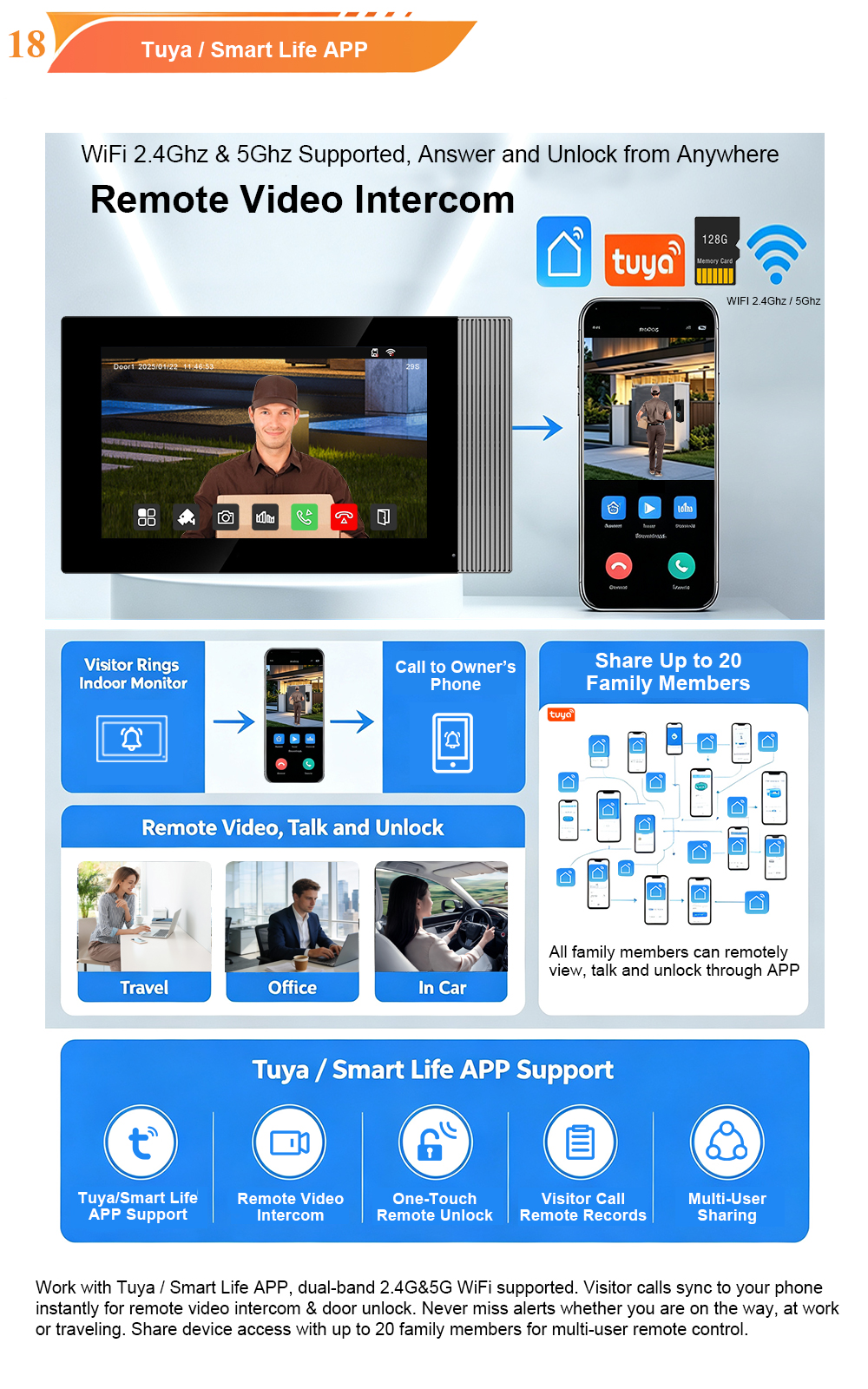
Symptom: The Tuya/Smart Life app shows the device as offline, or you cannot receive calls remotely.
Possible causes and solutions:
- Wi-Fi signal weak. Move the indoor monitor closer to the router, or add a Wi-Fi extender.
- 2.4GHz vs. 5GHz. Tuya devices typically only support 2.4GHz Wi-Fi. Ensure your phone and monitor are on the 2.4GHz band during setup.
- Router issues. Reboot the router. Check if other devices are online.
- App permissions. Ensure the app has notification and background refresh permissions on your phone.
- Device firmware outdated. Check for firmware updates in the app.
Prevention: Document the Wi-Fi password and keep the router firmware updated.
7. Call Button Not Working
Symptom: Visitors press the call button, but nothing happens.
Possible causes and solutions:
- Button stuck or damaged. Inspect the button for physical damage or debris. Clean if necessary.
- Wiring loose. Check the button’s connection to the main board.
- Outdoor station power off. Verify the outdoor station is receiving power (via 2-wire or PoE).
- Address/room number incorrect. For multi-button stations, ensure the correct apartment is assigned to the button.
Prevention: Test each button during routine maintenance.
8. Interference and Network Issues (IP Systems)
Symptom: Intermittent video freezes, dropped calls, or devices dropping offline.
Possible causes and solutions:
- Network congestion. Check for heavy traffic on the network. Use QoS settings to prioritize intercom traffic.
- Cable quality. Use CAT5e or CAT6 solid copper cable. Avoid CCA (copper-clad aluminum).
- PoE budget exceeded. Ensure your PoE switch can supply enough power for all connected devices.
- IP conflicts. Assign static IP addresses or ensure DHCP is working correctly.
- Firmware bugs. Update firmware to the latest version.
Prevention: Document network topology and monitor bandwidth usage.
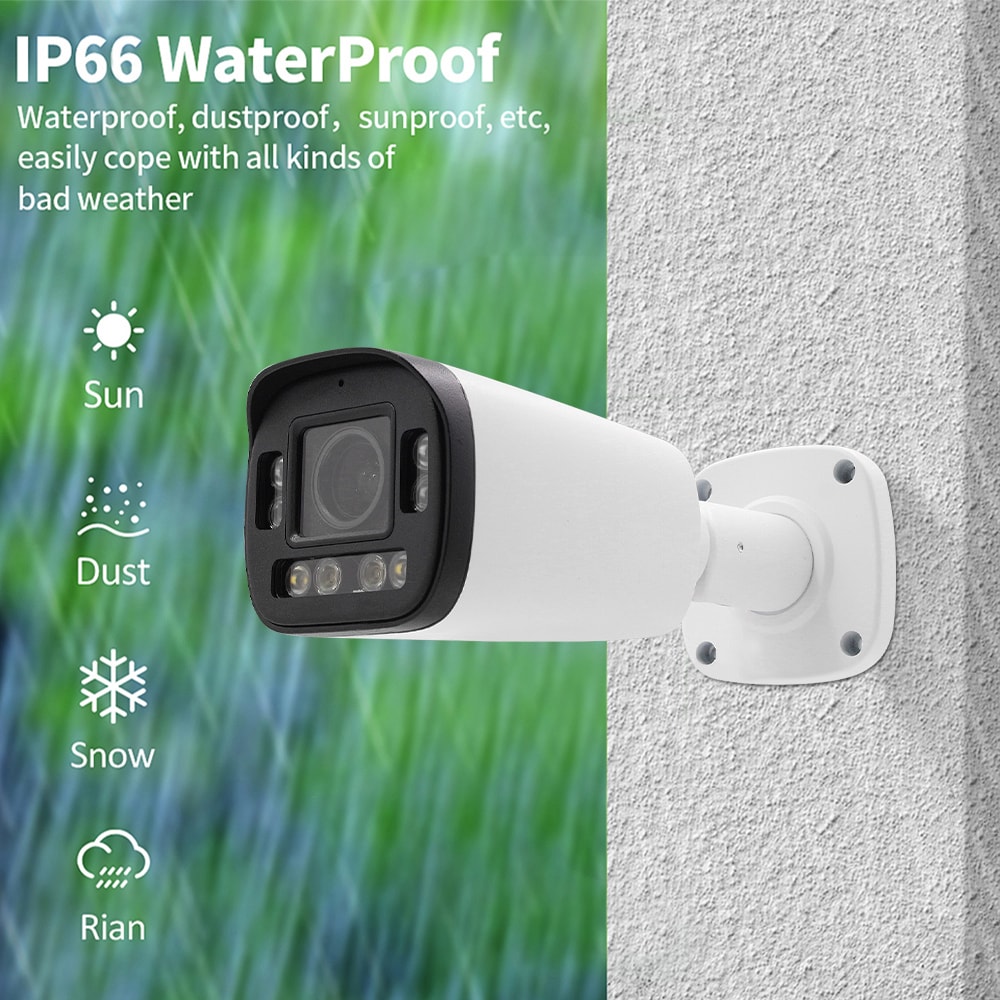
9. Weather Damage and Physical Issues
Symptom: Outdoor station is cracked, foggy, or corroded; water ingress.
Possible causes and solutions:
- Damaged seals. Inspect gaskets and rain covers. Replace if worn.
- Cracked housing. Replace the housing or unit if structurally compromised.
- Condensation inside lens. This indicates a seal failure. Replace the unit or reseal.
- Corrosion on terminals. Clean with contact cleaner and apply dielectric grease.
Prevention: Schedule annual inspections before rainy/snowy seasons.
10. Firmware and Software Glitches
Symptom: System freezes, settings reset, or features stop working.
Possible causes and solutions:
- Power cycle. Unplug the indoor monitor for 30 seconds, then plug it back in.
- Firmware update. Check for and install the latest firmware.
- Factory reset. As a last resort, reset the system (note: this erases settings).
- Configuration error. Review settings for accidental changes.
Prevention: Keep a record of firmware versions and update schedules.
Preventative Maintenance Checklist for Property Managers
- Monthly: Test call, audio, video, and unlock functions on a sample of units.
- Quarterly: Clean outdoor camera lenses and card readers.
- Bi-annually: Inspect outdoor station seals and rain covers.
- Annually: Review firmware updates, test backup power, and update resident card lists.
- As needed: Replace faulty power adapters, cables, or locks.
When to Call a Professional
Some issues require expert attention:
- Repeated power failures
- Water ingress inside sealed units
- Network configuration problems
- Lock mechanism failures
- Firmware corruption
FARHD provides technical support and spare parts for our systems. If you encounter a problem you cannot resolve, contact our support team.
Conclusion: Proactive Maintenance Saves Time and Money
A video door phone system is a long-term investment. With regular maintenance and quick troubleshooting, you can extend its lifespan, reduce service calls, and keep residents happy. Use this guide as a reference for common issues—and remember that prevention is always better than repair.

About the Author: S & Y Internet Technology Inc.
S & Y Internet Technology Inc. is a professional installation and repair service provider based in Flushing, New York. Our expert team provides door-to-door installation and maintenance within a 100 km radius, ensuring quick response and high-quality results for every project — whether residential, commercial, or specialized.

Install & Repair Services
You May Also Interest
-
RFID vs QR Code vs Mobile App: Comparing Access Methods for Residential Buildings
Choosing the right access method for your apartment building or gated community is a decision that affects security, convenience, cost, and resident satisfaction. RFID cards, QR codes, and mobile apps each have distinct strengths and weaknesses. This guide compares them side by side—so you can make an informed choice for your next project. In modern…
-
Tuya vs Smart Life: Which App Is Better for Your Video Door Phone?
A practical comparison to help you choose the right app for your smart intercom system If you’ve recently purchased a FARHD video door phone, you’ve probably noticed that the product documentation mentions two apps: Tuya Smart and Smart Life. This immediately raises a common question: which one should you actually use? Are they different? Does…
-
Touch Screen vs Non-Touch Video Intercom Monitors: Which Is Better for Residents?
When specifying a video intercom system for an apartment building, villa, or residential community, one question often divides decision-makers: should the indoor monitor have a touch screen or physical buttons? Both options have passionate advocates. Both have real advantages. And both can be the wrong choice if they don’t match the needs of the residents…
-
How to Upgrade an Old Apartment Intercom to IP Without Rewiring: Step-by-Step
Upgrading an old apartment intercom to a modern IP system no longer requires tearing down walls, replacing every cable, or disrupting residents for weeks. With the right retrofit technology, you can deliver full IP functionality—video calling, mobile access, remote management—using the existing 2-wire cabling already inside your building. This step-by-step guide shows you how. Many…